Posts

MFC reading and writing from the registry

After spending some time today coding in MFC I realized I had to store some values in the registry. I haven't done this in a while and didn't find much help on the net so I am adding my experience to hopefully help some folks out. It used to be you had to use the Get/Write private profile string methods in the Win32 API. MFC has made that easier with the CSettingsStore class. This is a new class in the MFC feature pack. So to use it you have to have service pack 1 installed for visual studio 2008. To use the class all you have to do is create an instance of that class and you can use it's methods to read,write,create, and pretty much do whatever you want in the registry. So let's look at some code that does some stuff in the registry. We're going to create/open a new key and write some values to it // let's create a new pointer to our registry class // Sadly the MSDN MFC documentation seems to be wrong // on the constructor logic. // This will put...
Visual Studio Tips & Tricks - Part Three Keyboard Shortcuts

Visual Studio has a keyboard command for just about everything. Many coders find having to move their hand away from their keyboard to their mouse slows them down. I agree and always look for a quick way to do something via the keyboard since I'm typing most of the time anyway. Let's start with the complete list from Microsoft. Visual C# 2008 Bindings Visual C# 2005 Bindings Visual Basic 2008 Bindings Visual Basic 2005 Bindings A few of my favorites are: * Ctrl-Shift-B: Build Solution (I'm an old VC coder so mine is set to F7) * Ctrl-. (period): Show "Add Using/Imports" dropdown for unknown types. * Ctrl-K, C: Comment Selection * Ctrl-K, U: Uncomment Selection * Ctrl-K, F: Format Section * Ctrl-K, D: Format Document * Ctrl-Space: Show Intellisense List * Ctrl-Shift-V: Paste Loop - Hit Multiple Times to paste through the list of recent 'copies' * Ctrl-F: Simple Find * Ctrl-Shift-F: Find in Files * Ctrl-H: Simpl...

Visual Studio Tips & Tricks - Part Two Conditional Breakpoints

Image
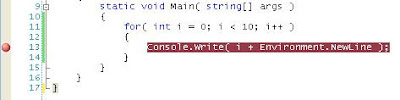
Many people know and love the debugger in Visual Studio. Being able to set a breakpoint to stop execution at a certain line in code is invaluable. However many times you find yourself only wanting to stop when a certain condition has been meet. So often you find yourself stepping through many lines of code until you reach the desired result. The solution to this is a conditional breakpoint. VS lets you set conditions on breakpoints so they only stop when that condition is met. So let's take a look at a quick example. This is a small console app that prints numbers from 1 to 10. However we want it to stop when the loop counter is equal to 5. First we set a breakpoint on the Console.Write method. So now we have a standard breakpoint set. Now to make it conditional right click on the breakpoint which brings up a context menu. Select the Condition menu item to bring up the Condition dialog box where we can set our condition. VS is pretty smart and in 2008 (not sure about 2005...

Visual Studio Tips & Tricks - Part One Formatting

Image
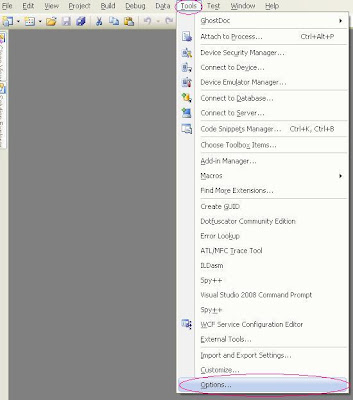
This is a departure from my regular blogging about code but I find that there are many little tips and tricks you can use in VS that make it easier to use. Not that it's a bad product but there are little things that can allow you to work faster and be just a bit more productive with less effort. As a very lazy coder I find that invaluable. This post or series of posts will cover a wide variety of things but hopefully it will help some people out. First let's mess with some options in Visual Studio. The first thing I do in VS is to turn on word wrap and line numbers. To access these you need to get into the options. So in the main menu select Tools -> then options This will bring up an Options dialog box with a tree view on the left with a whole slew of options. For now we're going to focus on the Text Editor section. Expand the Text Editor node and select the language you are interested in. I have selected C# here for my example. On the right hand side you wil...

C# convert HTML/System.Drawing.Color

Many times I find myself having to use an HTML color that isn't defined in the System.Drawing.Color section of the framework. .Net gives you an easy way to get around this. Use the ColorTranslator.FromHtml static method in the System.Drawing namespace. System.Drawing.Color c = System.Drawing.ColorTranslator.FromHtml("#F5F7F8"); String strHtmlColor = System.Drawing.ColorTranslator.ToHtml(c);

C# Finding Special Folders, My Documents, Home, etc

There are many times you need to find a user's home directory or my documents folder. .NET has made this pretty easy. It's all enumerated in the Environment.SpecialFolder enumeration The following values are available are pretty self explanatory, however the link above explains all the details. Environment.SpecialFolder.ApplicationData Environment.SpecialFolder.System Environment.SpecialFolder.CommonApplicationData Environment.SpecialFolder.CommonProgramFiles Environment.SpecialFolder.Cookies Environment.SpecialFolder.Desktop Environment.SpecialFolder.DesktopDirectory Environment.SpecialFolder.Favorites Environment.SpecialFolder.History Environment.SpecialFolder.InternetCache Environment.SpecialFolder.LocalApplicationData Environment.SpecialFolder.MyComputer Environment.SpecialFolder.MyMusic Environment.SpecialFolder.MyPictures Environment.SpecialFolder.Personal Environment.SpecialFolder.ProgramFiles Environment.SpecialFolder.Programs Environment.SpecialFolder.Recent Environ...

Sql Server Reporting Services export to PDF in Landscape

So I have found a need to create ssrs reports in pdf format. Some of these reports contain a lot of data. So I needed to layout the page in landscape format. Sadly there is no page layout settings in srrs (once again Crystal wins but that is another story). So to achieve the same thing you will need to change the settings of the page. Open the properties of the report and set the width=29cm and height=21cm. These are the settings for landscape. Now you have a lot of extra room to move things around. I also found to maximize the report you can get the width of the report to about 22.86cm. So to summarize width=29cm (11.41") height=21cm (8.27") report data=27.30cm (10.75")