Visual Studio Tips & Tricks - Part Two Conditional Breakpoints
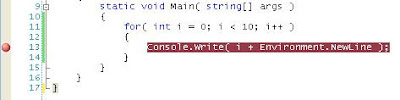
Many people know and love the debugger in Visual Studio. Being able to set a breakpoint to stop execution at a certain line in code is invaluable. However many times you find yourself only wanting to stop when a certain condition has been meet. So often you find yourself stepping through many lines of code until you reach the desired result. The solution to this is a conditional breakpoint. VS lets you set conditions on breakpoints so they only stop when that condition is met. So let's take a look at a quick example. This is a small console app that prints numbers from 1 to 10. However we want it to stop when the loop counter is equal to 5. First we set a breakpoint on the Console.Write method. So now we have a standard breakpoint set. Now to make it conditional right click on the breakpoint which brings up a context menu. Select the Condition menu item to bring up the Condition dialog box where we can set our condition. VS is pretty smart and in 2008 (not sure about 2005...