Posts

Showing posts with the label visual studio

Visual Studio Tips & Tricks - Part Three Keyboard Shortcuts

Visual Studio has a keyboard command for just about everything. Many coders find having to move their hand away from their keyboard to their mouse slows them down. I agree and always look for a quick way to do something via the keyboard since I'm typing most of the time anyway. Let's start with the complete list from Microsoft. Visual C# 2008 Bindings Visual C# 2005 Bindings Visual Basic 2008 Bindings Visual Basic 2005 Bindings A few of my favorites are: * Ctrl-Shift-B: Build Solution (I'm an old VC coder so mine is set to F7) * Ctrl-. (period): Show "Add Using/Imports" dropdown for unknown types. * Ctrl-K, C: Comment Selection * Ctrl-K, U: Uncomment Selection * Ctrl-K, F: Format Section * Ctrl-K, D: Format Document * Ctrl-Space: Show Intellisense List * Ctrl-Shift-V: Paste Loop - Hit Multiple Times to paste through the list of recent 'copies' * Ctrl-F: Simple Find * Ctrl-Shift-F: Find in Files * Ctrl-H: Simpl...
Visual Studio Tips & Tricks - Part Two Conditional Breakpoints

Image
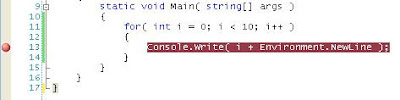
Many people know and love the debugger in Visual Studio. Being able to set a breakpoint to stop execution at a certain line in code is invaluable. However many times you find yourself only wanting to stop when a certain condition has been meet. So often you find yourself stepping through many lines of code until you reach the desired result. The solution to this is a conditional breakpoint. VS lets you set conditions on breakpoints so they only stop when that condition is met. So let's take a look at a quick example. This is a small console app that prints numbers from 1 to 10. However we want it to stop when the loop counter is equal to 5. First we set a breakpoint on the Console.Write method. So now we have a standard breakpoint set. Now to make it conditional right click on the breakpoint which brings up a context menu. Select the Condition menu item to bring up the Condition dialog box where we can set our condition. VS is pretty smart and in 2008 (not sure about 2005...

Visual Studio Tips & Tricks - Part One Formatting

Image
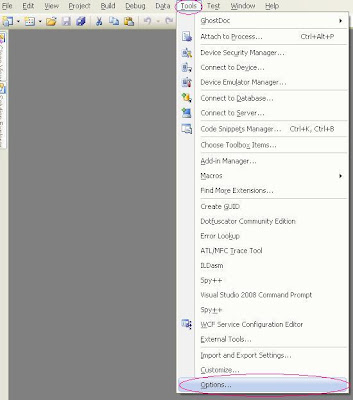
This is a departure from my regular blogging about code but I find that there are many little tips and tricks you can use in VS that make it easier to use. Not that it's a bad product but there are little things that can allow you to work faster and be just a bit more productive with less effort. As a very lazy coder I find that invaluable. This post or series of posts will cover a wide variety of things but hopefully it will help some people out. First let's mess with some options in Visual Studio. The first thing I do in VS is to turn on word wrap and line numbers. To access these you need to get into the options. So in the main menu select Tools -> then options This will bring up an Options dialog box with a tree view on the left with a whole slew of options. For now we're going to focus on the Text Editor section. Expand the Text Editor node and select the language you are interested in. I have selected C# here for my example. On the right hand side you wil...

Ghost Doc Visual Studio XML documentation tool

There is a nifty little tool called ghost doc for VS that can auto generate the XML documentation used in VS. It rocks and I use it all the time. If you don't have it you should download it here . It works in VS 03, 05, and 08. After installing it you can simply right click a methods and select document this or for the keyboard power users use a keyboard shortcut you can define to auto document.